What is Hifz Software for Schools?
HifzIQ is a Quran memorization management system designed specifically for Hifz schools, madrasas, and Islamic academies. It brings the entire Hifz journey — lesson tracking, revision scheduling, teacher-student communication, attendance, and progress reports — into one organized digital platform.
Instead of paper registers, WhatsApp messages, and guesswork, HifzIQ gives your school a structured system where every student’s Quran memorization journey is tracked with precision — using the proven SM-2 spaced repetition algorithm that automatically calculates when each student should revise which portion of the Quran.
Every teacher gets their own dashboard. Every student knows exactly what to recite today. And you, as the school administrator, can see the health of your entire school at a glance.
HifzIQ uses the traditional three-tier Hifz system:
- Sabaq — The new lesson (what the student is memorizing today)
- Sabqi — Recent revision (lessons from the past few weeks)
- Manzil — Old revision (cycling through the entire memorized portion)
Two Ways to Get Started
HifzIQ offers two options depending on your school’s needs:
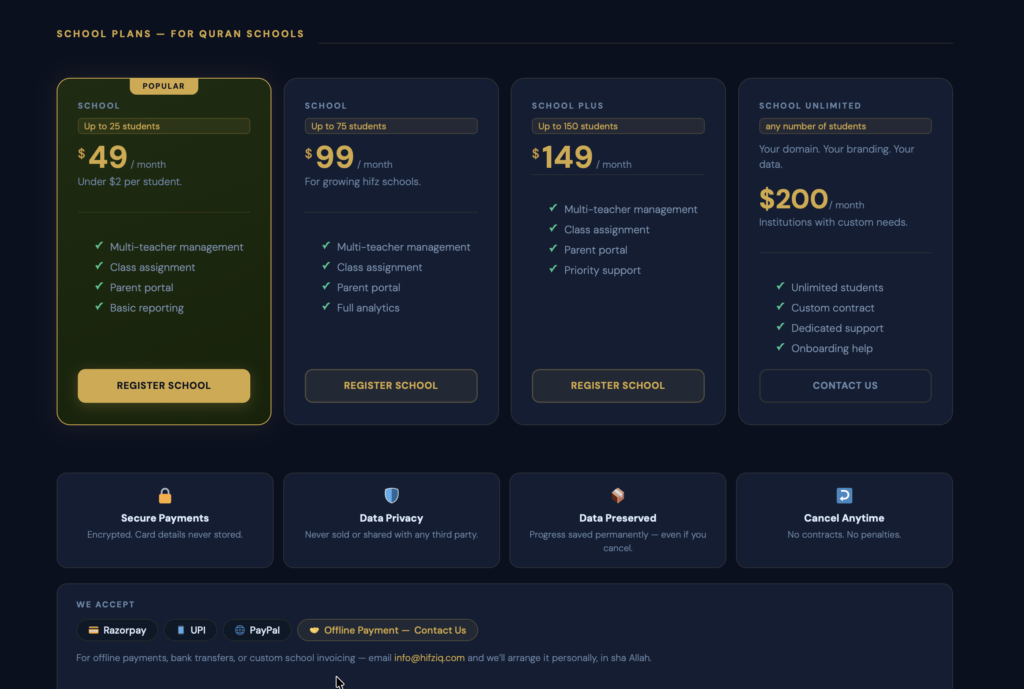
Option 1: Use HifzIQ Hosted on hifziq.com
This is the quickest way to get started. Your school gets its own dedicated space on the HifzIQ platform — no installation, no technical setup required.
Best for:
- Schools that want to get started immediately
- Madrasas without a website or technical team
- Teachers running small independent Hifz circles
How it works:
- Step 1″ Register your school on hifziq.com. Check Pricing
- Step 2″ Log in to your School Dashboard (Log in )
- Step 3″Add your teachers and students (School Dashboard)
- Start tracking: — everything is hosted and maintained for you
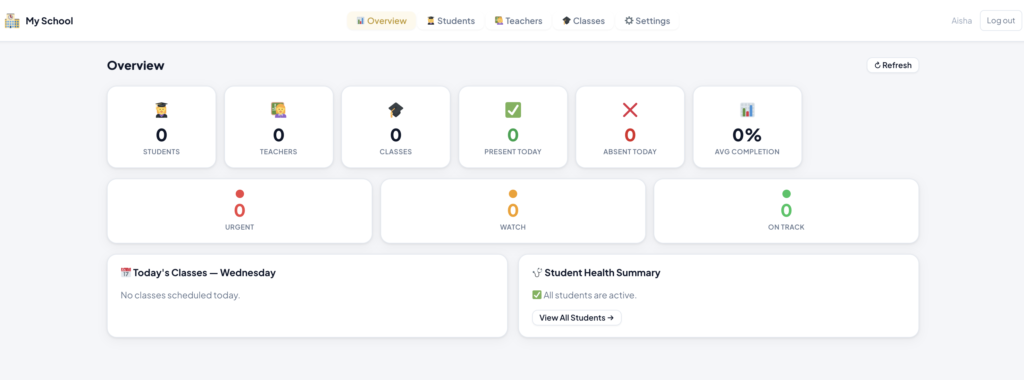
Option 2: The HifzIQ School Plugin (Custom Branding more Features)
For schools that want HifzIQ running on their own website — with their own logo, colors, and domain — the School Plugin is the right choice. The schools have more features in this plan
Best for:
- Established Islamic schools with their own WordPress website
- Schools that want full white-label branding
- Institutions that want HifzIQ integrated into their existing student portal
How it works:
- Step 1 : Purchase a Plan and Contact us . Available at $200/month
- Step 2 : You receive the HifzIQ School Plugin files. Download it
- Step 3 : Go to your WordPress website site and upload Plugin ZIP by going to Plugins.This installs it on your WordPress site. We can also provide you onboarding help and help you install it in your website for FREE
- Step 4 :Configure your school name, logo, and branding. Import Teachers and Students Csv
- Your students and teachers log in directly from your website — they never need to visit hifziq.com. Your Plugin is maintained by Hifziq.com and you don’t need any developer to maintain the plugin. You will receive regular updates when the Core Software is updated. You need to renew your Plan monthly. We can also offer you an yearly Option.
- Bonus : Schools in this version also get Fees add on where they can tract their fees and revenue. Messaging Teachers and Admins and generating report is also a feature of this Plan
📌 To get the School Plugin, contact us at hifziq.com to discuss your school’s requirements and licensing.
Step-by-Step: Setting Up Your School
Step 1: Register Your School
Go to hifziq.com and click Register as a School. Fill in your school details:
- School name
- Admin name and email
- Password
- Number of students (this determines your plan/seat count)
Once registered, you will land on your School Dashboard.
Step 2: Add Teachers
Go to the set up tab from the top navigation of your School Dashboard.
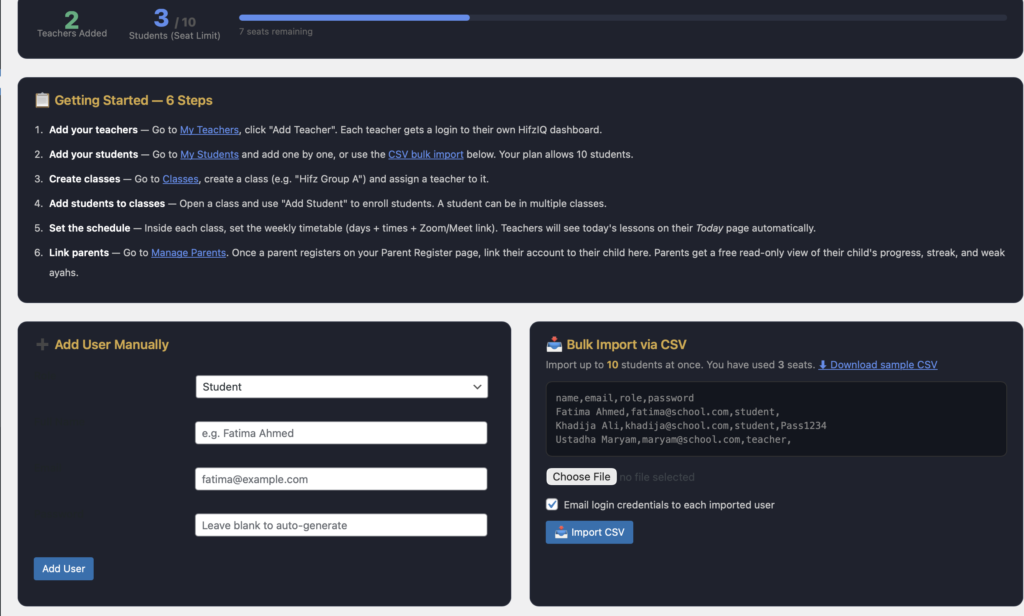
Download sample csv, organise teacher and student like example csv and upload – all your teacers and student will be uploaded in a click.
Alternatively you can also add teachers and studets manually.
Click Add Teacher and enter:
- Teacher’s name
- Email address
- A temporary password (the teacher can change this after first login)
The teacher will now have their own Teacher Dashboard where they can manage their assigned students, mark attendance, log sessions, and track progress.
You can add as many teachers as your plan allows. Each teacher only sees the students assigned to them.
Step 3 Add Students
Download sample csv, organise teacher and student like example csv and upload – all your teacers and student will be uploaded in a click. or
Go to the Students tab and click Add Student.
Enter the student’s details:
- Full name
- Email address (or parent’s email for young students)
- Password
- Assign to a teacher
- Starting Surah and Ayah (where the student’s Hifz currently stands)
Once added, the student will appear in their assigned teacher’s dashboard and can log in to their own Student Dashboard to see their daily tasks.
Step 4: Create Classes
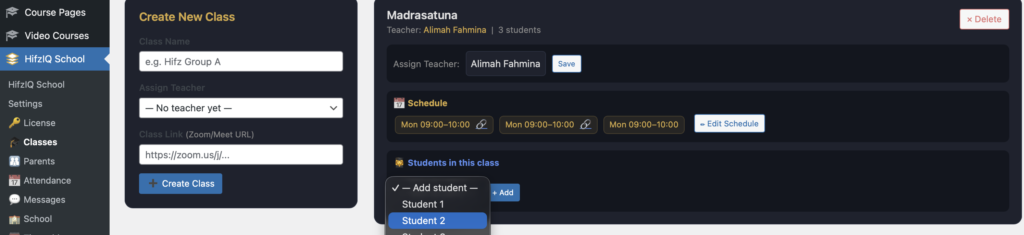
Go to the Timetable tab and set up your class schedule.
- Select the teacher
- Choose the days and time slots
- Assign students to the class
This creates a structured timetable that appears on both the teacher’s and the school admin’s dashboard under Today’s Classes.
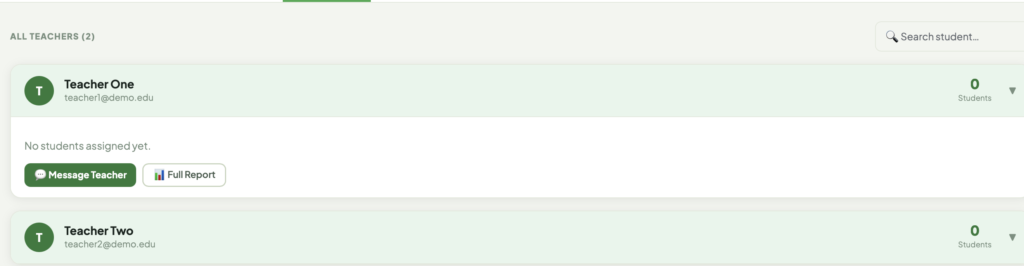
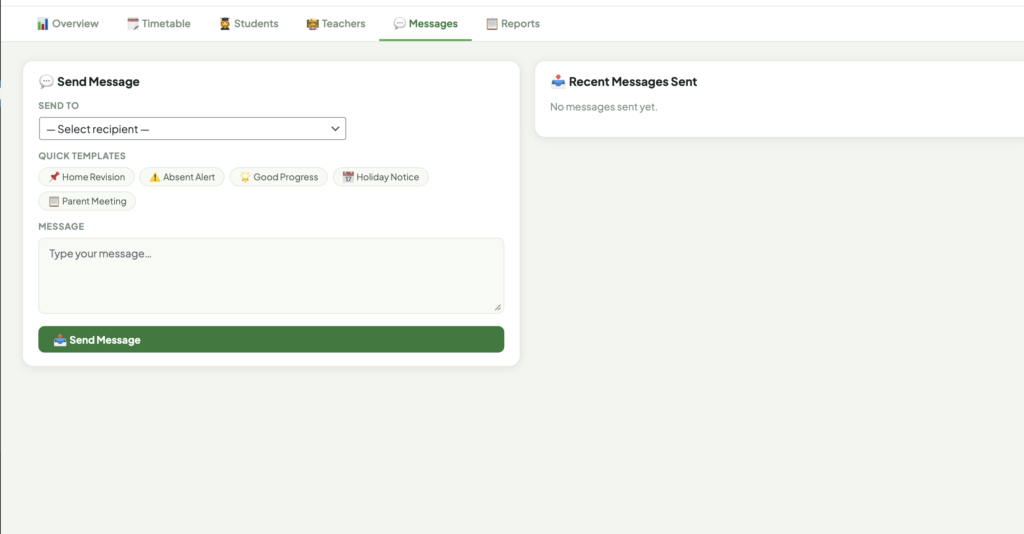
You can also see and message the teachers.
Understanding Your School Dashboard
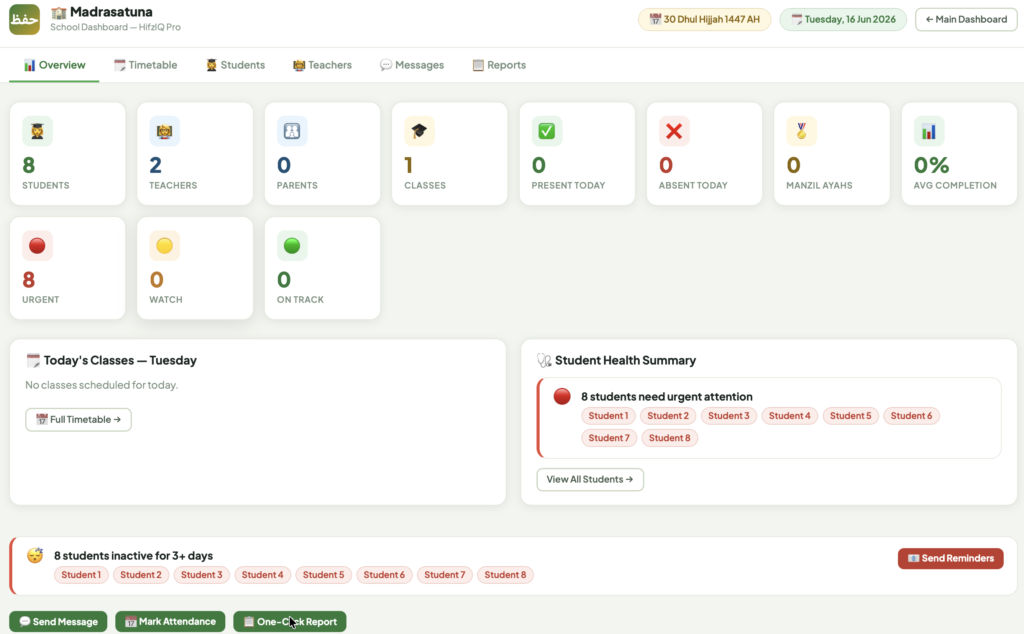
When you log in as a School Admin, your Overview page shows everything happening in your school at a glance.
The Stats Row (Top Cards)
| Card | What it shows |
|---|---|
| 🎓 Students | Total number of enrolled students |
| 👨🏫 Teachers | Total number of teachers in your school |
| 👨👩👧 Parents | Total number of linked parent accounts |
| 🎒 Classes | Total number of active classes |
| ✅ Present Today | Students who attended today |
| ❌ Absent Today | Students who missed today’s session |
| 🏅 Manzil Ayahs | Total Manzil ayahs revised across all students today |
| 📊 Avg Completion | Average lesson completion percentage across the school |
Student Health Indicators
Below the stats, you will see three health status cards:
- 🔴 Urgent — Students who are significantly behind in their revision or have missed multiple sessions. These students need immediate attention.
- 🟡 Watch — Students who are slightly behind or showing early signs of inconsistency. Keep an eye on them.
- 🟢 On Track — Students whose Hifz journey is progressing well.
The Student Health Summary panel on the right side of the dashboard lists the names of students in the Urgent category so you can follow up with their teachers quickly.
Today’s Classes
The Today’s Classes panel shows all classes scheduled for today, including:
- Class time
- Teacher name
- Student name (with a link to their profile)
This gives you a live snapshot of what is happening in your school on any given day.
The Date Display
The top right of the dashboard shows both the Hijri date and the Gregorian date so your records stay aligned with the Islamic calendar — particularly useful for tracking attendance around Islamic holidays.
Managing Teachers
From the Teachers tab you can:
- View all teachers and their assigned student counts
- Add a new teacher with name, email, and password
- Edit teacher details — update name, email, or reset password
- Remove a teacher — students can be reassigned before removal
- View a teacher’s profile — see their active students, today’s schedule, and recent activity
Each teacher has their own login and dashboard. They cannot see other teachers’ students or data.
Managing Students
From the Students tab you can:
- View all students across the school with their health status
- Add a new student and assign them to a teacher
- Edit student details — update name, email, teacher assignment, or starting position
- View a student’s profile — see their full Sabaq/Sabqi/Manzil history, attendance record, and progress graph
- Remove a student — when they graduate or leave
- Filter students by teacher, health status, or class
Student accounts give each learner access to their own personal dashboard where they can see their daily tasks, upcoming revision schedule, and memorization progress.
Timetable & Scheduling
The Timetable tab is where you build and manage your school’s class schedule.
Setting Up a Schedule
- Choose a teacher from the dropdown
- Select the days of the week for their classes
- Set the start and end time for each slot
- Assign students to that slot
What the Timetable Shows
- A weekly grid view of all classes across all teachers
- Each class block shows the teacher name and time
- You can click any class to see which students are in it
How It Appears on the Dashboard
Once your timetable is set up, Today’s Classes on the Overview page will automatically populate with the correct classes for each day — no manual updating needed.
Tracking Progress & Reports
The Reports tab gives you data-driven insight into how your school is performing.
What You Can Track
- Individual student progress — How many ayahs has each student memorized? How consistent is their attendance? Are they keeping up with revision?
- Teacher performance overview — Which teachers have the most students on track? Which classes have higher absence rates?
- School-wide completion rates — Average daily completion, Manzil coverage, and overall Hifz progress
- Attendance reports — Daily, weekly, and monthly attendance records for every student
The SM-2 Spaced Repetition System
HifzIQ uses the SM-2 algorithm to automatically calculate each student’s revision schedule. This means:
- Students who recite well and consistently will have longer gaps between revisions of older portions
- Students who struggle will have those portions brought up more frequently for revision
- The system adapts to each student individually — no two students have exactly the same schedule
This removes the guesswork from the teacher’s planning and ensures no portion of the Quran is forgotten due to long gaps.
The School Plugin (Custom Branding)
The HifzIQ School Plugin allows you to run the entire HifzIQ system on your own WordPress website — fully branded with your school’s identity.
What You Get with the Plugin
- Your school’s logo on all dashboards
- Your school’s colors and name throughout the interface
- Students and teachers log in from your own website URL
- No HifzIQ branding visible to your users
- All features of the hosted version — teacher dashboards, student dashboards, timetable, reports, attendance, spaced repetition
Requirements
- A WordPress website (self-hosted)
- The HifzIQ School Plugin license
- Basic WordPress admin access to install the plugin
How to Install
- Receive the plugin
.zipfile from HifzIQ - Go to your WordPress Admin → Plugins → Add New → Upload Plugin
- Upload the
.zipfile and click Install Now - Activate the plugin
- Go to HifzIQ Settings in your WordPress admin and enter your License Key
- Configure your school name, logo, and color settings
- Your HifzIQ system is now live on your website
Auto-Updates
The plugin includes an auto-update system. When a new version is released, you will see the update notification directly in your WordPress Plugins page — just like any other plugin. Click update and your system stays current.
📌 To purchase a School Plugin license, visit hifziq.com or contact us directly.
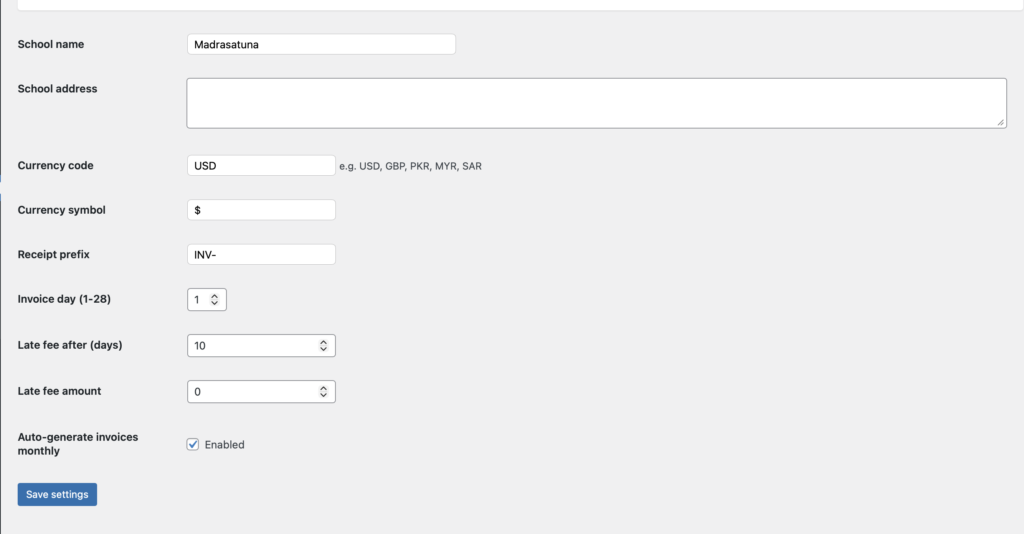
You can also manage and view school fees and revenue- when you take the custom branded Hifziq to your website.
Frequently Asked Questions
Can a student be assigned to more than one teacher? Currently each student is assigned to one primary teacher. If your school has a system where students rotate between teachers, you can reassign them as needed.
What happens if a teacher leaves the school? You can reassign all of that teacher’s students to another teacher before removing the teacher account. No student data is lost.
Is there a limit on how many students I can add? Yes, your plan includes a set number of seats. If you need to add more students than your current plan allows, you can upgrade your plan from the school settings.
Can parents see their child’s progress? Yes. You can create a parent account linked to a student. Parents can log in to view their child’s daily tasks, attendance, and progress — but they cannot edit anything.
Does HifzIQ work for students memorizing at different speeds? Absolutely. The SM-2 spaced repetition algorithm adapts to each student individually. A student memorizing one ayah per day and a student memorizing one page per day will each have their own personalized revision schedule.
Can the School Plugin be customized further? The plugin supports logo, school name, and color customization out of the box. For deeper customization, contact us to discuss your requirements.
Is the data secure? All student data is stored securely. For the hosted version, data is managed on HifzIQ’s servers. For the School Plugin, data is stored on your own server — you have full control.
What if I need help setting up? We offer onboarding support for new schools. Reach out through the contact page on hifziq.com and our team will guide you through the setup.
For further assistance, visit hifziq.com or reach out through our support page.